



This piece was written by Thomas Hamilton and it’s part of an ongoing series. Part 1 - Faithful with Little/Grow Your Substack: Features That Bring In Readers.
See our directory below.
Three Substack settings decide what people see before they subscribe, while they’re browsing, and right when they’re about to leave:
Welcome page
Leaderboard introduction
Email opt-out page
Many writers never touch these settings, and it’s important that you modify them so you’re not bleeding traffic. It only takes about 10 minutes to fix, and you don’t have to write a single new post to do it.
While your posts get people to the door, these three features decide whether they walk in, stop to look, or slip out the back. Right now, most of ours still say whatever Substack defaulted to.
I’ll walk through all three using my own pages at Christian Book Finder.
How to customize your Substack welcome page
Your Substack welcome page is the first page a new visitor sees before they subscribe. It displays your image, short description, subscriber count, an email sign-up box, and a link to skip.
By default, it’s a plain white page with a little gray link at the bottom that says “No thanks.” Which gives a stranger absolutely no reason to stay. So they click “No thanks”... and you never hear from them again.
Oof.
But don’t worry! You can change this.
Here are the three things you need to change immediately, if you haven’t done so already:
The image. Ours is the Christian Book Finder logo with our tagline under it: “You found us, now let’s help you get found!” It tells a visitor they’re in the right place in about two seconds.
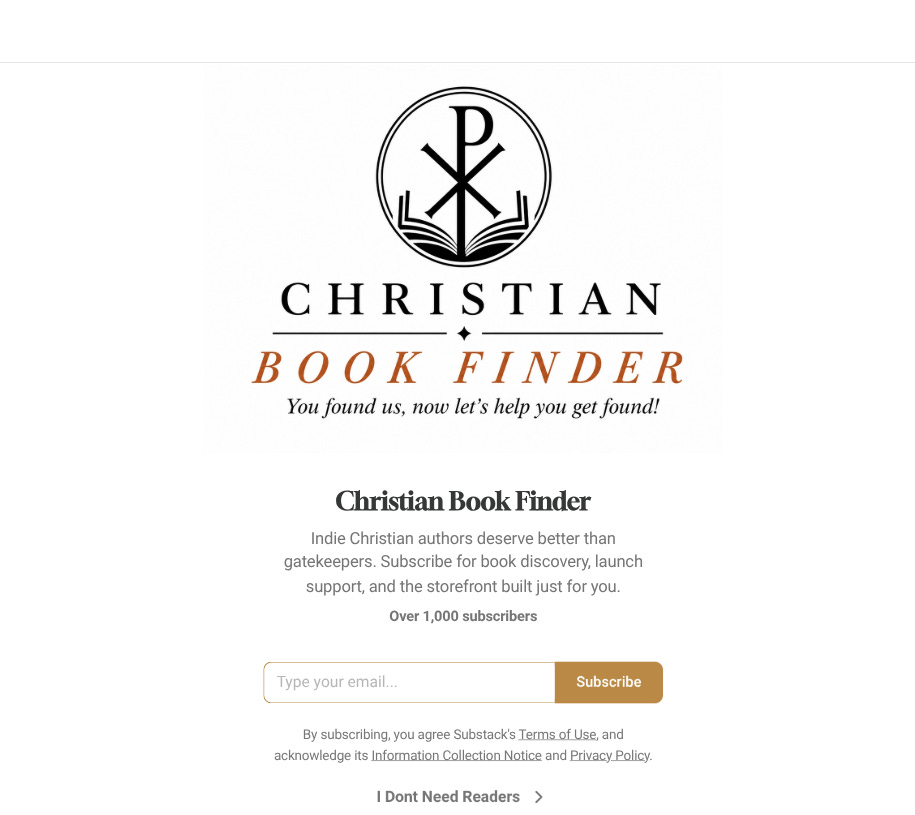
The hook. This is your one-sentence description, under Settings → Basics → Publication short description. Ours says, “Indie Christian authors deserve better than gatekeepers. Subscribe for book discovery, launch support, and the storefront built just for you.” The first sentence names the problem. The second gives them a solid reason to subscribe.
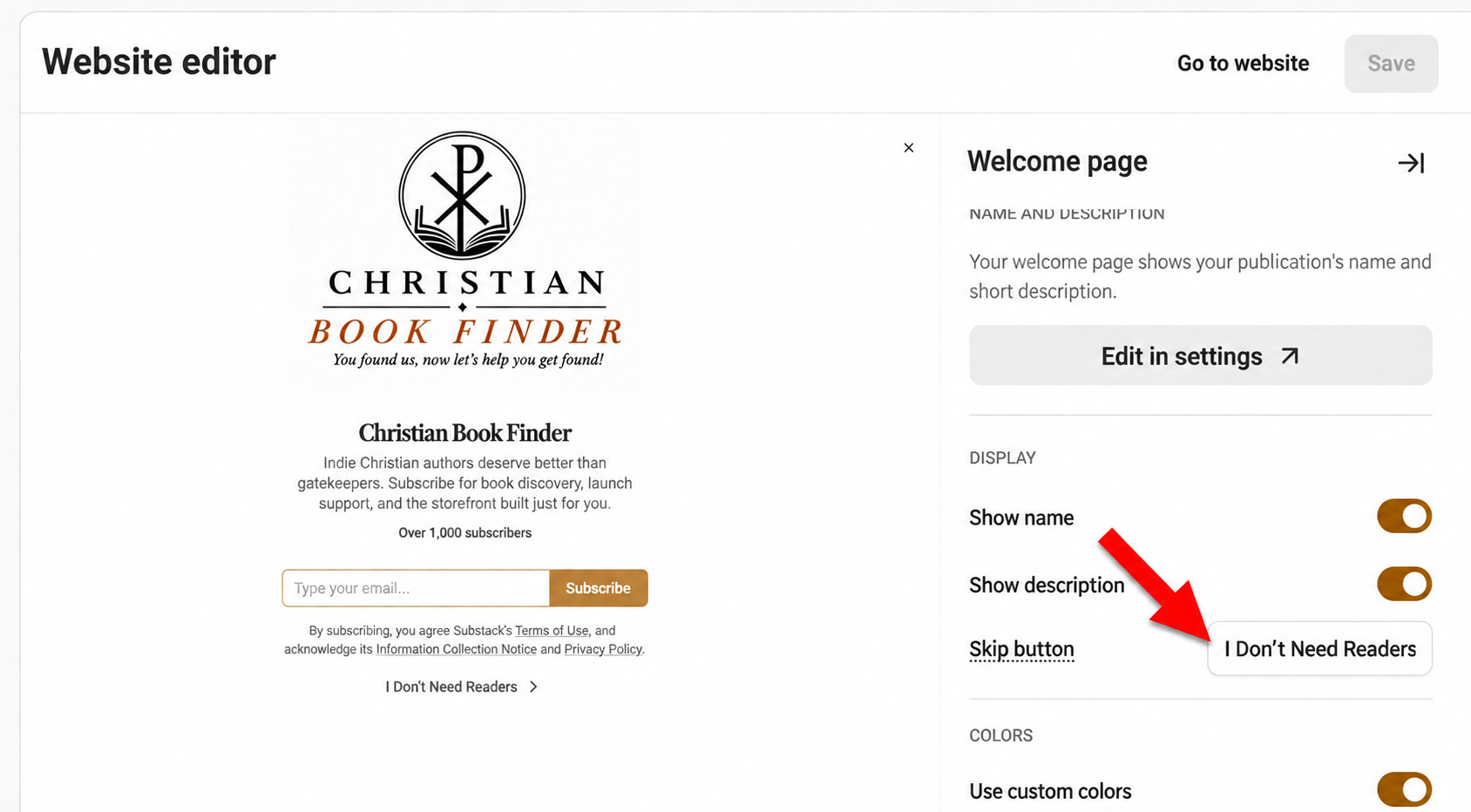
The skip button. Almost nobody knows you can rename “No thanks.” Ours says “I Don’t Need Readers.” It’s a little edgy, but it gives people a reason to subscribe. Leaving it at “no thanks,” leaves permission for the reader to skip it.
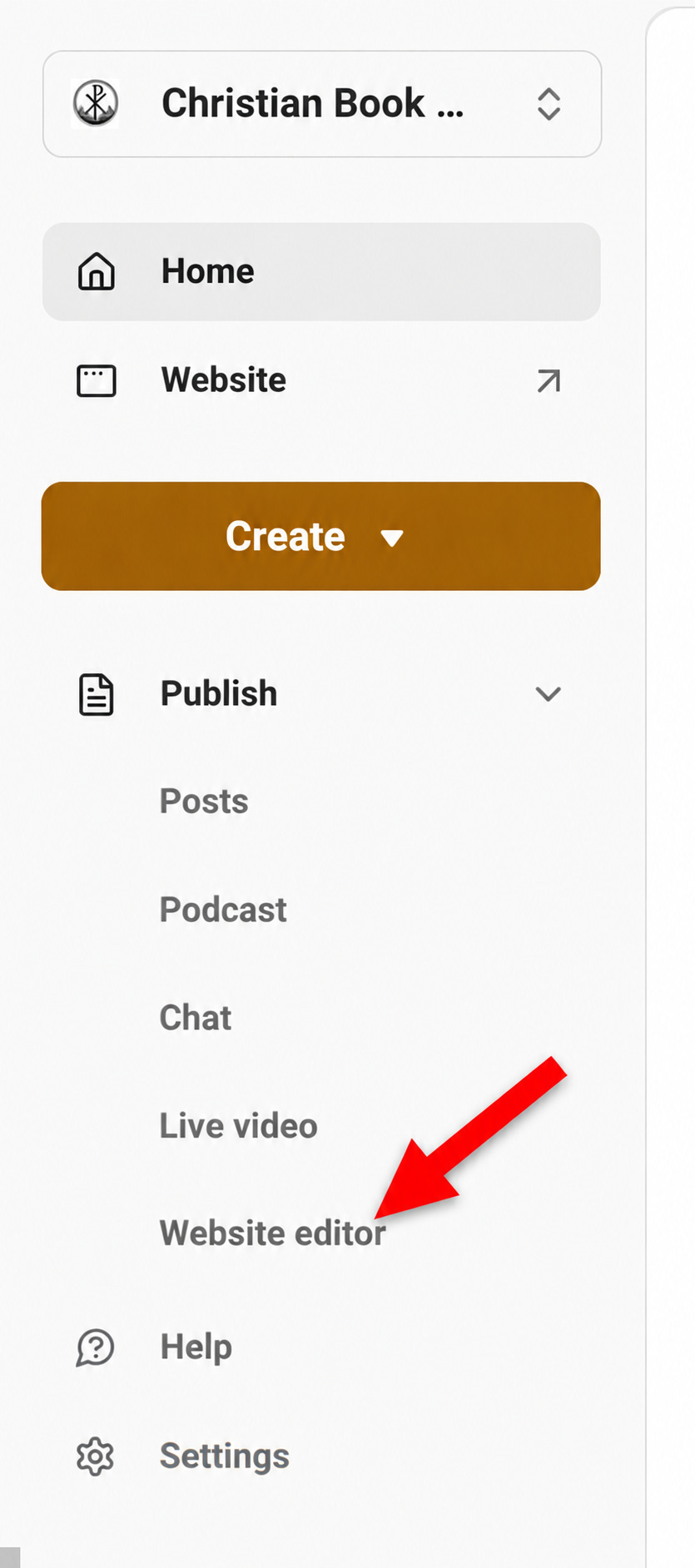
To change this, go to your dashboard and into settings. Choose “website editor”
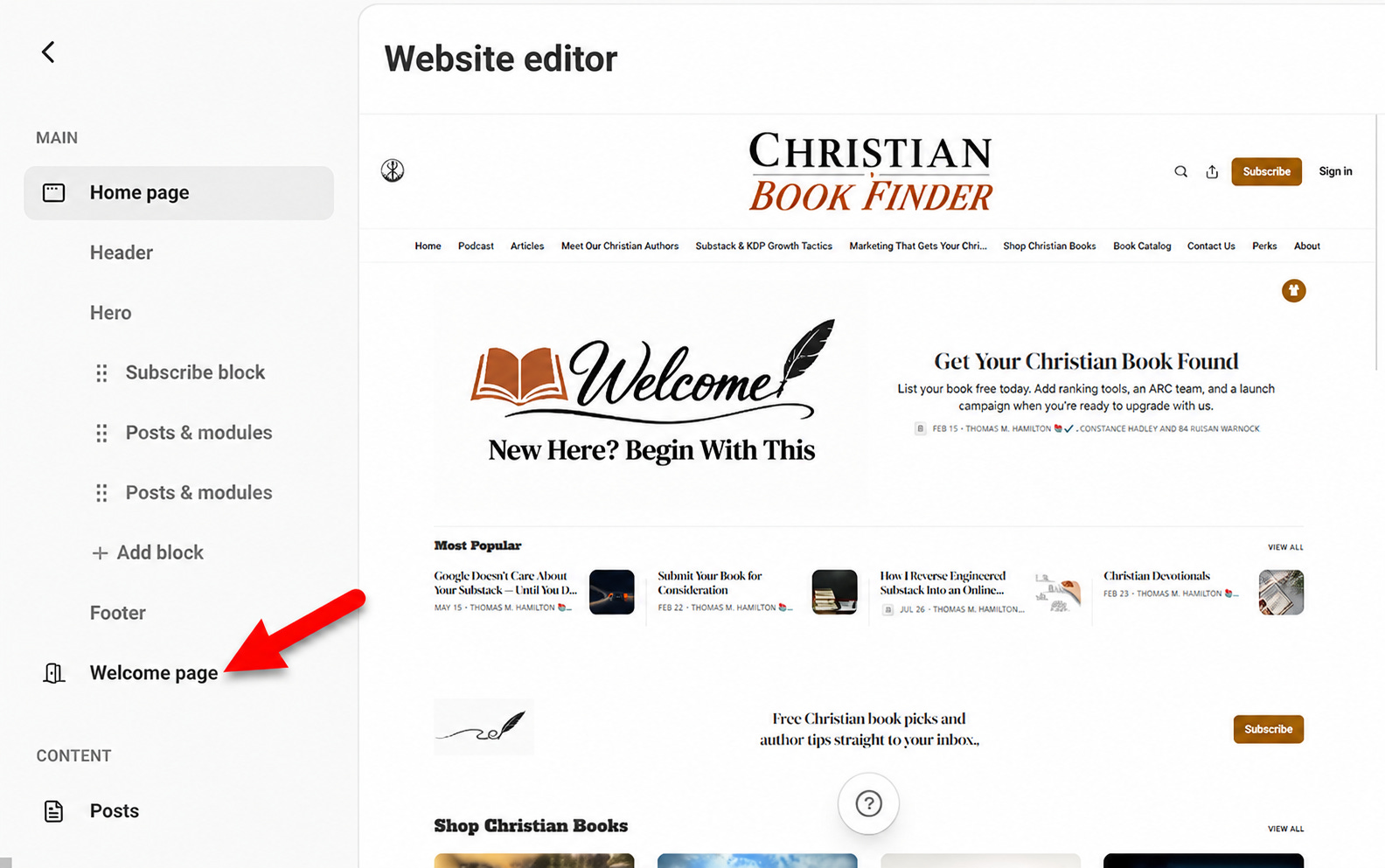
Then choose “welcome page.”
Then at the bottom right, you can click into the space beside “skip button,” and change it. It can only be about four or five words, so choose wisely.
How to write your Substack leaderboard introduction
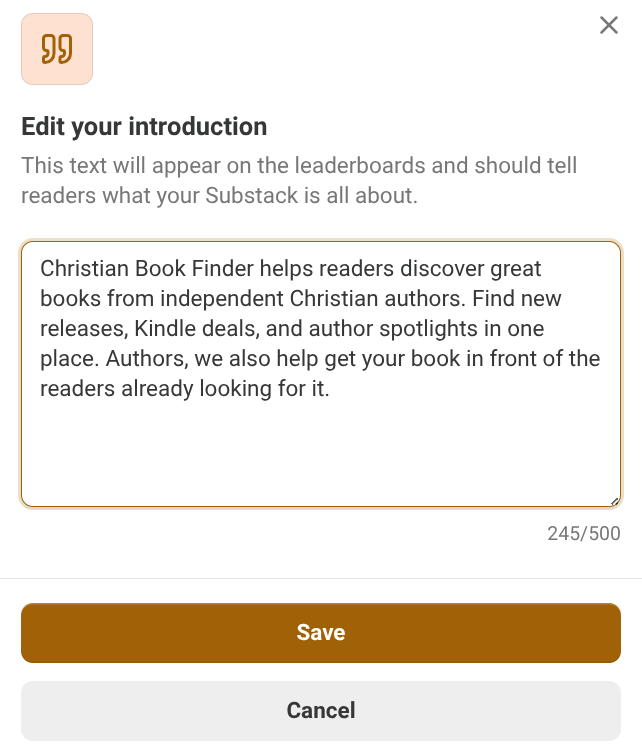
Your Substack leaderboard introduction is a 2–3 sentence description, up to 500 characters, that appears next to your publication on Substack’s leaderboards.
Leaderboards are where readers go hunting for something new to read. You write your introduction under Settings → Advanced → Details → Introduction, and most people leave it blank. That’s like opening a bookstore and covering the front window with brown paper.
Your job in those 500 characters is to answer one question for someone who’s never heard of you: why should I click? Lead with what the reader gets, keep it plain, and skip the clever wordplay. Assume a browsing reader gives you one sentence before they scroll on.
Here’s ours, at about 270 characters:
Find your next favorite Christian book. Every week, Christian Book Finder brings you new releases, Kindle deals, and spotlights on independent Christian authors you won’t find on the bestseller shelf.
You don’t have to use all 500, you just have to use the first sentence well.
How to customize your Substack email opt-out page
Your Substack email opt-out page is the page readers see right after they turn off your emails. It’s your last chance to keep them as subscribers.
You’ll find it under Settings → Emails → Email opt-out page, and it opens a full editor with links, images, buttons, and lists. Substack will default it to this:
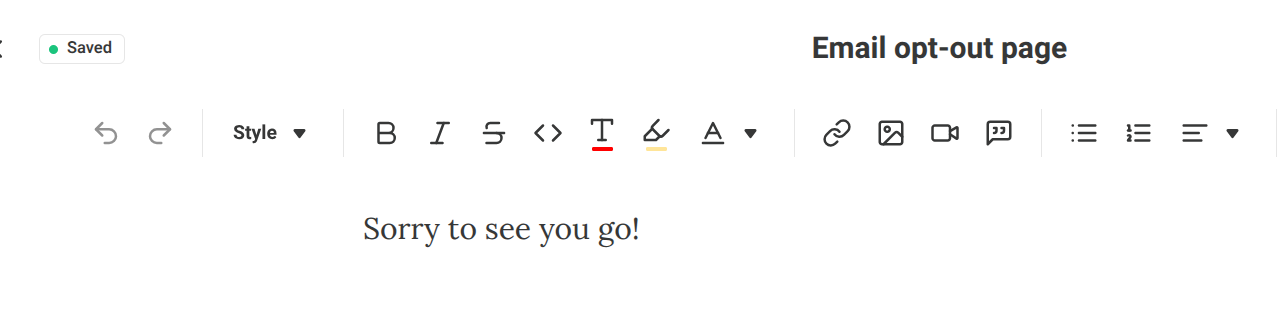
Boring. They will just move on. Won’t think twice about staying subscribed.
Here is what I’ve learned about readers with my two years on Substack. A lot of people who turn off your emails aren’t done with you. Their inbox is just over-loaded and they feel overwhelmed. They don’t know they can switch to “Prefer app” and keep reading you with zero emails. If your page doesn’t tell them, they’re gone.
Here’s what mine says:
Your inbox is a little lighter now, and that’s okay.
If we were showing up too often, you don’t have to say goodbye to take a break. Here are a few ways to stay close without the emails:
Read in the Substack app. Our posts land in your app Inbox, so you can catch up whenever it suits you. Here’s how:
On desktop or mobile, go to your profile settings.
Scroll down to Notifications.
Click the dropdown next to “Newsletter delivery” and choose “Prefer app.”
That’s it. No more emails, and you’re still subscribed.
Listen instead. The Christian Book Finder Podcast covers new releases and author interviews. Listen here
Browse anytime. Our Book Catalog is always open, no inbox needed. Visit the Book Catalog
Changed your mind? We’d love for you to stay! Just follow the same steps and switch your delivery back to email.
Either way, thank you for reading with us. We’re praying your next good book finds you soon.
— Thomas and the Christian Book Finder team
The first option is the one that keeps people. Readers have no clue “Prefer app” exists, so spell out the steps for them. I even included screen shot in my opt out email so they know exactly where to go.


The 3 skipped Substack features at a glance
Skipped Substack features at a glance:
Welcome page: image, two-sentence hook, subscriber count, and a renamed skip button
Leaderboard introduction: Settings → Details → Introduction, up to 500 characters
Email opt-out page: Settings → Emails, one way to stay, one way back, and a kind goodbye
Frequently asked questions
Can you change the “No thanks” button on a Substack welcome page?
Yes. You can rename the skip link on your Substack welcome page to any text you want.
Where do I find the Substack leaderboard introduction?
Go to Settings → Details → Introduction. You get up to 500 characters, and Substack asks for a 2–3 sentence description.
Can someone stay subscribed to a Substack without getting emails?
Yes. In their profile settings, a reader can scroll to Notifications, open the dropdown next to “Newsletter delivery,” and choose “Prefer app.” Posts then show up in the Substack app instead of their email inbox.
Where do I edit my Substack email opt-out page?
Go to Settings → Emails → Email opt-out page. It opens a full editor where you can add text, links, images, and lists.
ABOUT THE WRITER
Thomas M. Hamilton writes Christian Book Finder, where he helps Christian indie authors with their books.
→ Subscribe to Christian Book Finder
MORE FROM THIS SERIES: Faithful with Little (Matthew 25: 14-30)/Grow Your Substack: Features That Bring In Readers.
This was really helpful! Thanks for the info :)
Saving this for later!